
# Set Up HTTPS LubeLogger runs on Kestrel, which is a cross-platform standalone web server provided by .NET If you're running LubeLogger behind a reverse proxy(i.e. NGINX), then this walkthrough does not apply to you since the SSL certs will be served up by NGINX instead of Kestrel. This article covers the step-by-step process to set up HTTPS for a LubeLogger instance. ## Docker If you're running LubeLogger on a Docker instance, first read [this article by Microsoft](https://learn.microsoft.com/en-us/aspnet/core/security/docker-compose-https?view=aspnetcore-8.0) 1. Convert the .PEM / .CRT files into .PFX, read [this StackOverflow post](https://stackoverflow.com/questions/808669/convert-a-cert-pem-certificate-to-a-pfx-certificate) 2. Open and modify the .env file and add the following lines(note that in this example I used bob as the password for the cert) > [!NOTE] > You can use the [LubeLogger Configurator](https://lubelogger.com/configure) > for this step ``` ASPNETCORE_Kestrel__Certificates__Default__Password=bob ASPNETCORE_Kestrel__Certificates__Default__Path=/https/<yourPFXCertificateName>.pfx ASPNETCORE_URLS=https://+:443;http://+:80 ``` 3. Open and modify docker-compose.yml. You will need to bind a new volume to the Docker container so that Kestrel can access the certificate file. ``` volumes: - ./https/:/https:ro ``` 4. Check the port bindings to ensure that traffic is being forwarded to port 443 ``` ports: - 443:443 ``` 5. Run `docker-compose up -d` to start up the container and `https://localhost` will now have a valid cert. ## Windows If you're running LubeLogger as the standalone Windows executable: 1. Convert the .PEM / .CRT files into .PFX, read [this StackOverflow post](https://stackoverflow.com/questions/808669/convert-a-cert-pem-certificate-to-a-pfx-certificate) 2. Navigate to the Server Settings Configurator and click Next until you get to "Server Endpoints" 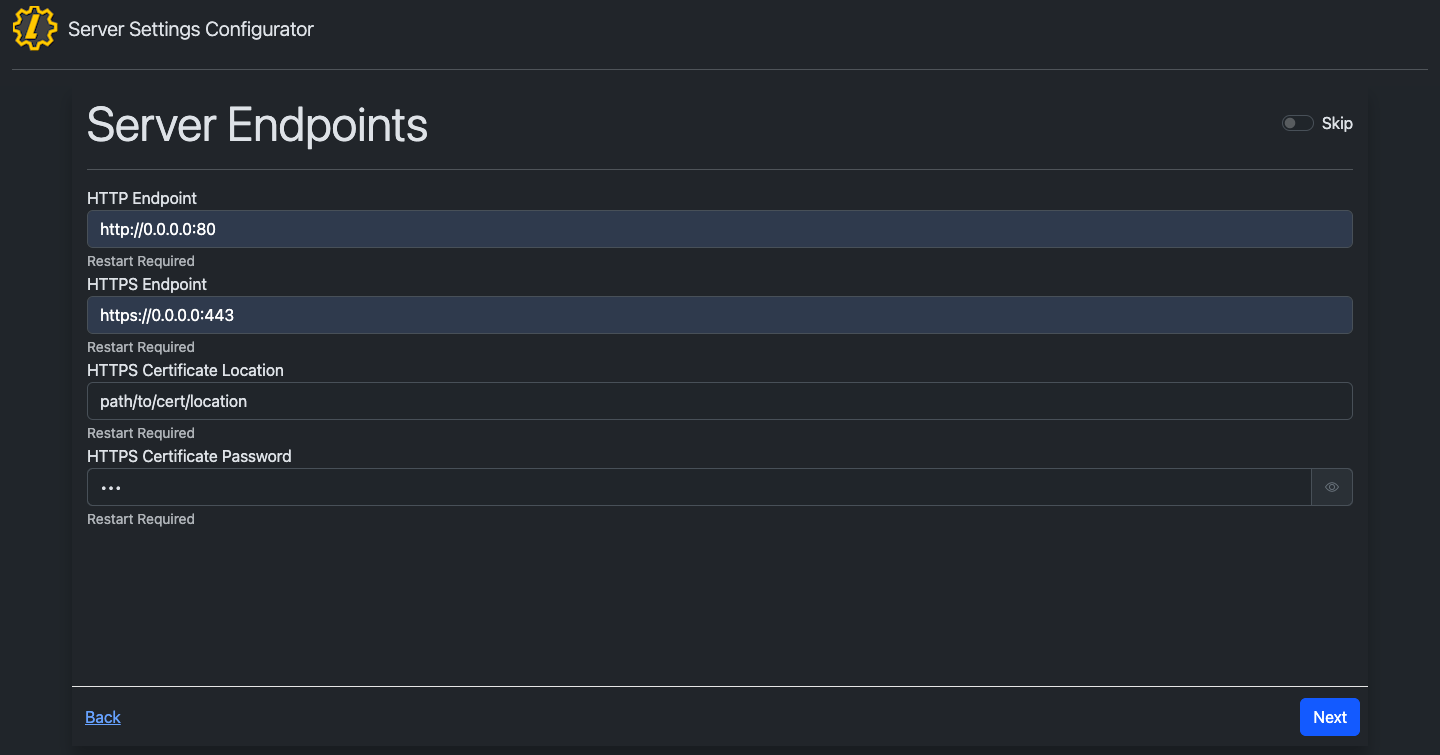 Note: Replace `0.0.0.0` with your IPv4 address 3. Save the Settings by clicking to the end of the Server Settings Configurator and click "Save" 4. Restart the app and `https://localhost` will now have a valid cert.